
Install and enable
Install the app from the Shopify App Store, then enable the app embed in your theme so blocks can render on the storefront. After install, the home page surfaces a “Setup Guide” card that walks you through the 4 onboarding steps.
Step 1 — Install from the App Store
Section titled “Step 1 — Install from the App Store”Find TT Badges & Product Labels on the Shopify App Store and click Add app → confirm permissions in your admin.
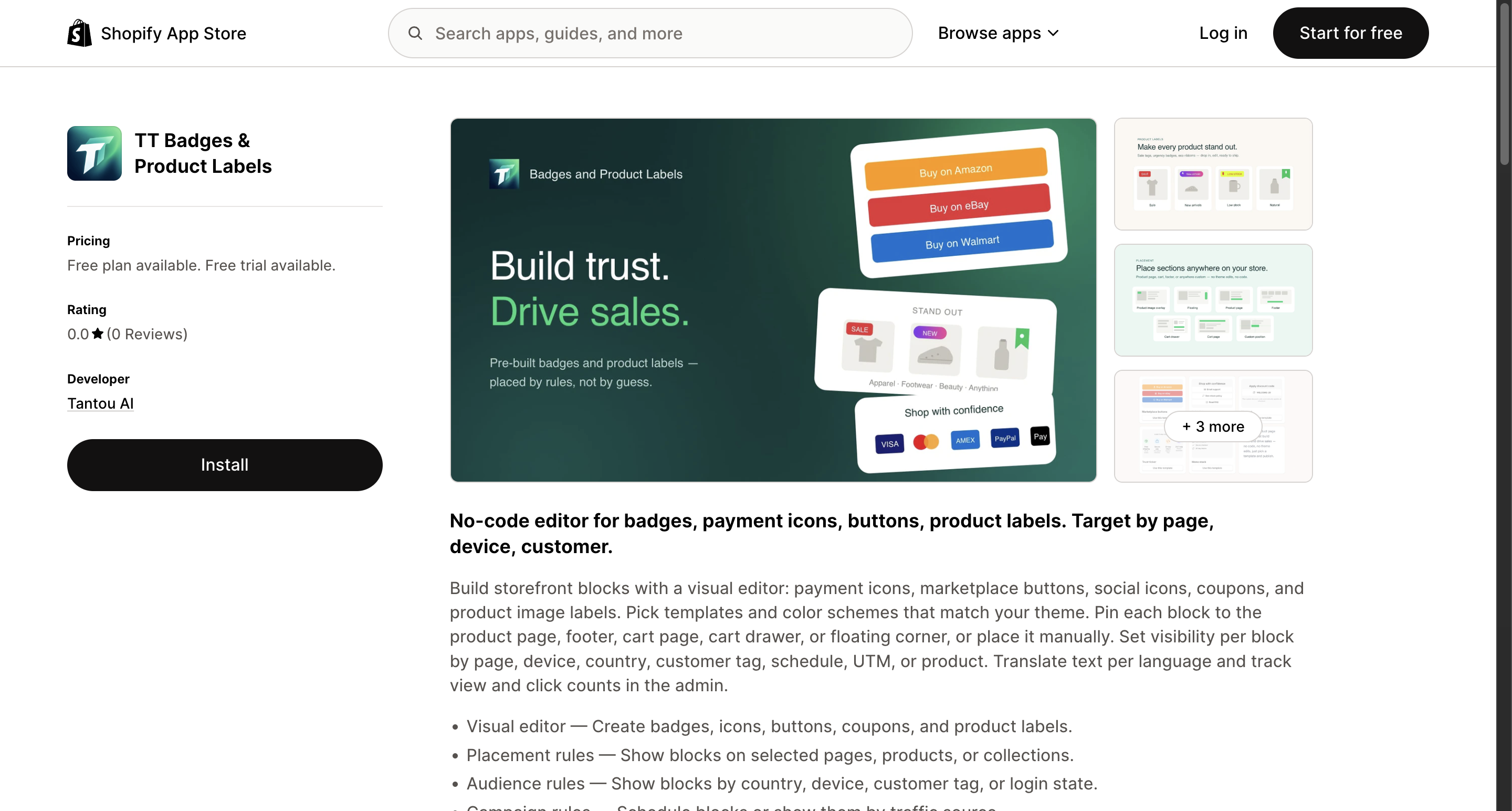
Permissions requested:
read_locales— read the languages enabled on your storeread_themes— read theme files (used to derive color schemes)write_products— read products / collections / variants metafields, write block config metafieldsread_inventory— read inventory (used by the inventory visibility dimension)unauthenticated_read_product_listings/unauthenticated_read_product_inventory— Storefront API (used when the Label block renders on collection pages)
The app does not request access to customer personal data, orders, or payment information. See Privacy Policy.
Step 2 — Enable the app embed
Section titled “Step 2 — Enable the app embed”Step 1 of the home “Setup Guide”: “Enable app embed in your Shopify theme”.
Tip: “Enable the TT Badges & Product Labels app embed so blocks can render on your storefront.”
Shopify Admin → Online Store → Themes → Current theme → Customize → Theme editor bottom-left → App embeds → Toggle "TT Badges & Product Labels app embed" ON → Click Save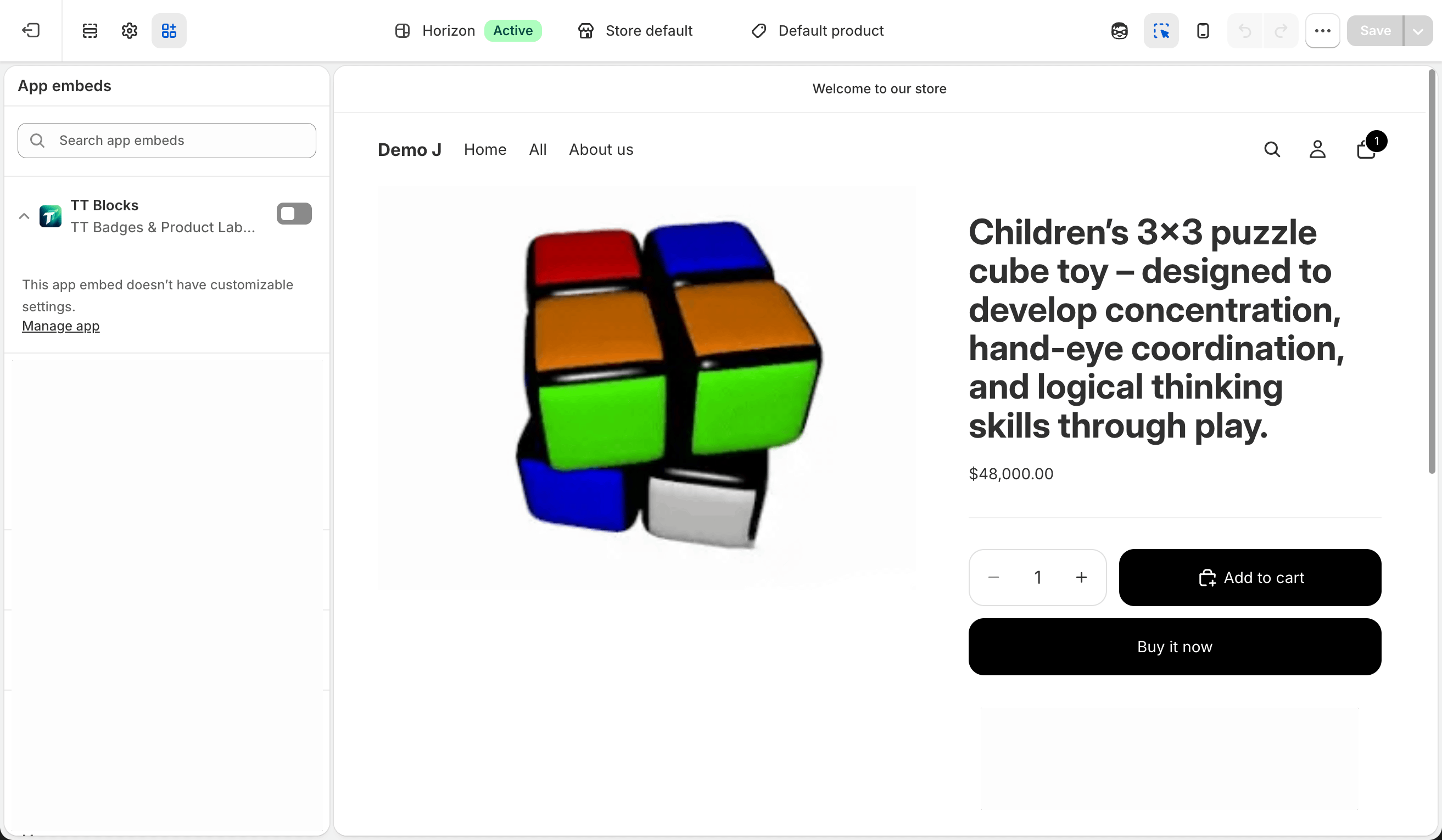
⚠️ Note: “Switching themes resets this toggle — you’ll need to re-enable it after changing themes.”
Step 3 — Verify
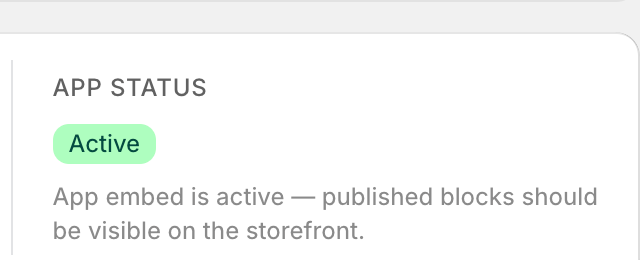
Section titled “Step 3 — Verify”Back on the TT Badges & Product Labels admin home, the “App status” card in StatsRow should read “Active”.
If it still shows “Inactive”:
- Wait a few seconds and refresh (Shopify metafield sync has latency)
- Confirm you actually clicked Save in the theme editor (not just toggled the switch)
- Confirm you edited the published theme (not a draft theme)
Step 4 — Create your first block
Section titled “Step 4 — Create your first block”The setup guide then walks you through:
- “Create your first block” — see Quick start
- “Add the block block to your product page template” — Custom Position scenario, see Custom placement
- “Verify on your storefront”
Uninstall
Section titled “Uninstall”To uninstall:
Shopify Admin → Settings → Apps and sales channels → TT Badges & Product Labels → ⋯ → UninstallAfter uninstall:
- Shopify automatically fires the
app/uninstalledwebhook - Merchant block data is deleted per Privacy Policy §6
- The TT Badges & Product Labels app embed in your theme is deactivated automatically (blocks no longer render on the storefront)
Multi-store / development stores
Section titled “Multi-store / development stores”- Each Shopify store installs and is billed independently
- You can install on a Shopify development store for testing (free demo mode)