
Quick start
Run through the basic features in 10 minutes — from a fresh install to seeing a block on your storefront. Each step shows the minimum operation only; deep details link out to the relevant doc.
Prerequisites
Section titled “Prerequisites”Complete Install and enable. Confirm Block list → StatsRow → “App status” shows “Active”.
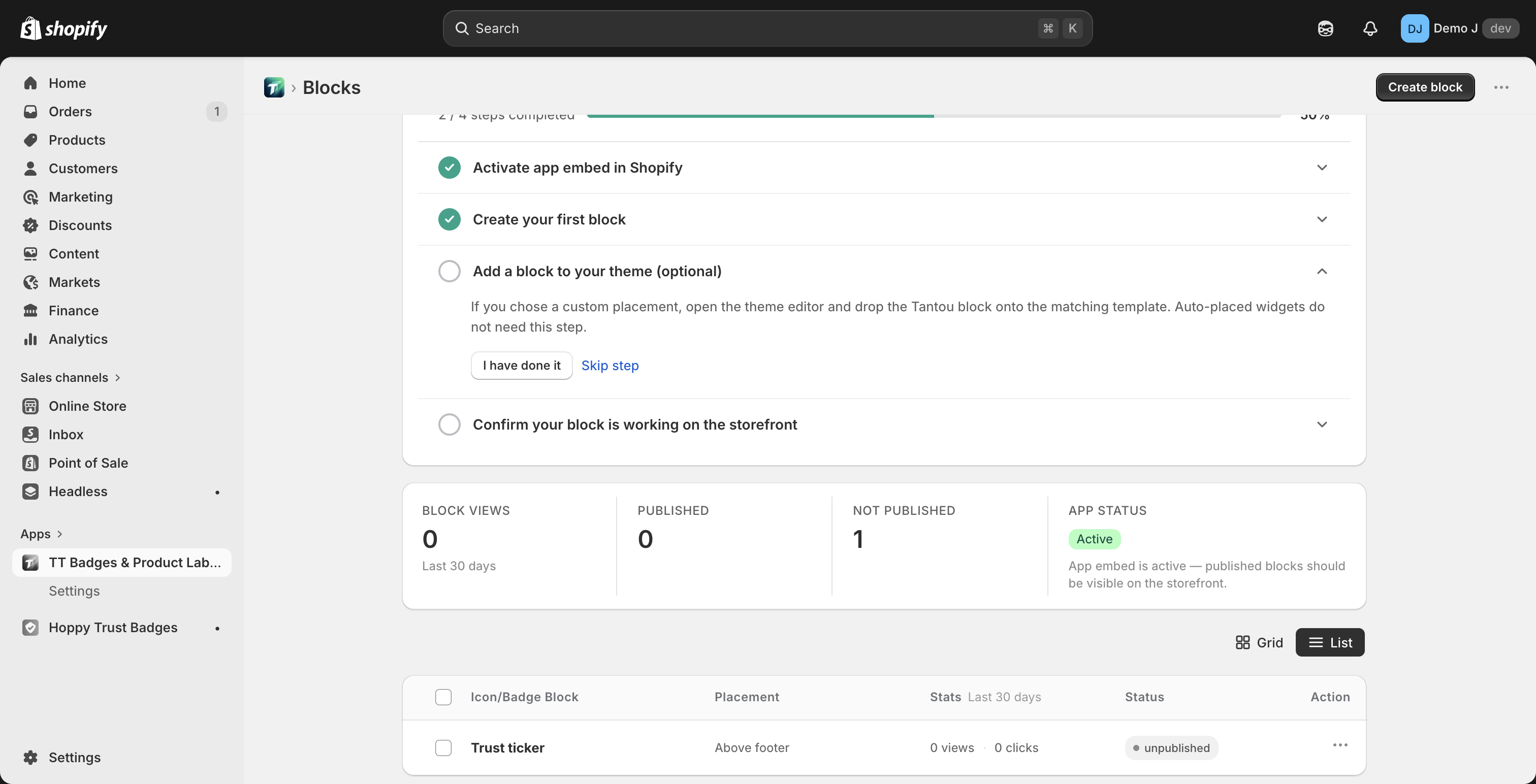
8-step run-through
Section titled “8-step run-through”1. Create: build a block with the wizard (~1 min)
Section titled “1. Create: build a block with the wizard (~1 min)”Home → “Create block” → wizard, three steps:
- Placement → choose Product page
- Template → pick anything from the recommended row (e.g. Trust Hero)
- Style → keep Default
The wizard exits straight into the editor.
2. Edit content: change one piece of copy (~1 min)
Section titled “2. Edit content: change one piece of copy (~1 min)”Content tab → tap any component in the list → edit the Heading / Text field → the right-side canvas updates in real time.
3. Switch color: try the Advanced tab (~30 sec)
Section titled “3. Switch color: try the Advanced tab (~30 sec)”Advanced tab → Color scheme card → click “Change scheme” → pick another in the dialog (e.g. Plain Mono) → apply.
Tip: “Switching applies the chosen scheme’s colors and shapes to your block. Text content, layout, and items stay as-is.”
4. Add a display rule (~1 min)
Section titled “4. Add a display rule (~1 min)”Target tab → left SubNav: Pages → switch to Custom → check Product (/products/…) (other pages won’t show the block).
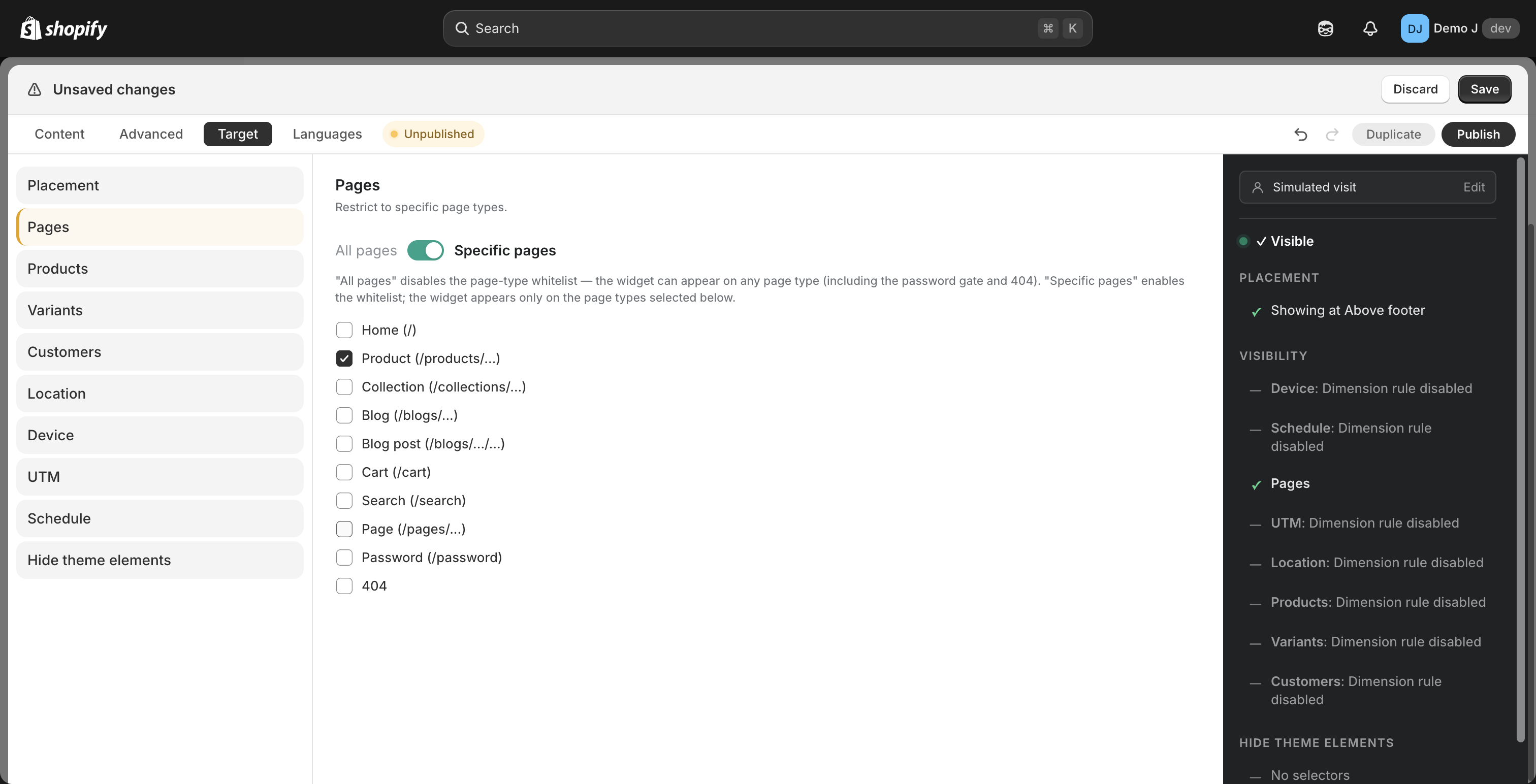
5. Verify the rule with the simulator (~30 sec)
Section titled “5. Verify the rule with the simulator (~30 sec)”Right-side Simulator sidebar → URL field: https://your-shop.com/products/foo → check that the top StickyBar verdict shows Visible.
6. Add a translation language (optional, ~1 min)
Section titled “6. Add a translation language (optional, ~1 min)”Languages tab → “Add language” → pick a language enabled on your store → fill one field’s translation in the table.
Untranslated fields fall back automatically (“If a language has no value, it falls back to the default language.”).
7. Publish (~10 sec)
Section titled “7. Publish (~10 sec)”Click “Publish” at the top of the editor. Status badge → Published.
8. Storefront verify (~1 min)
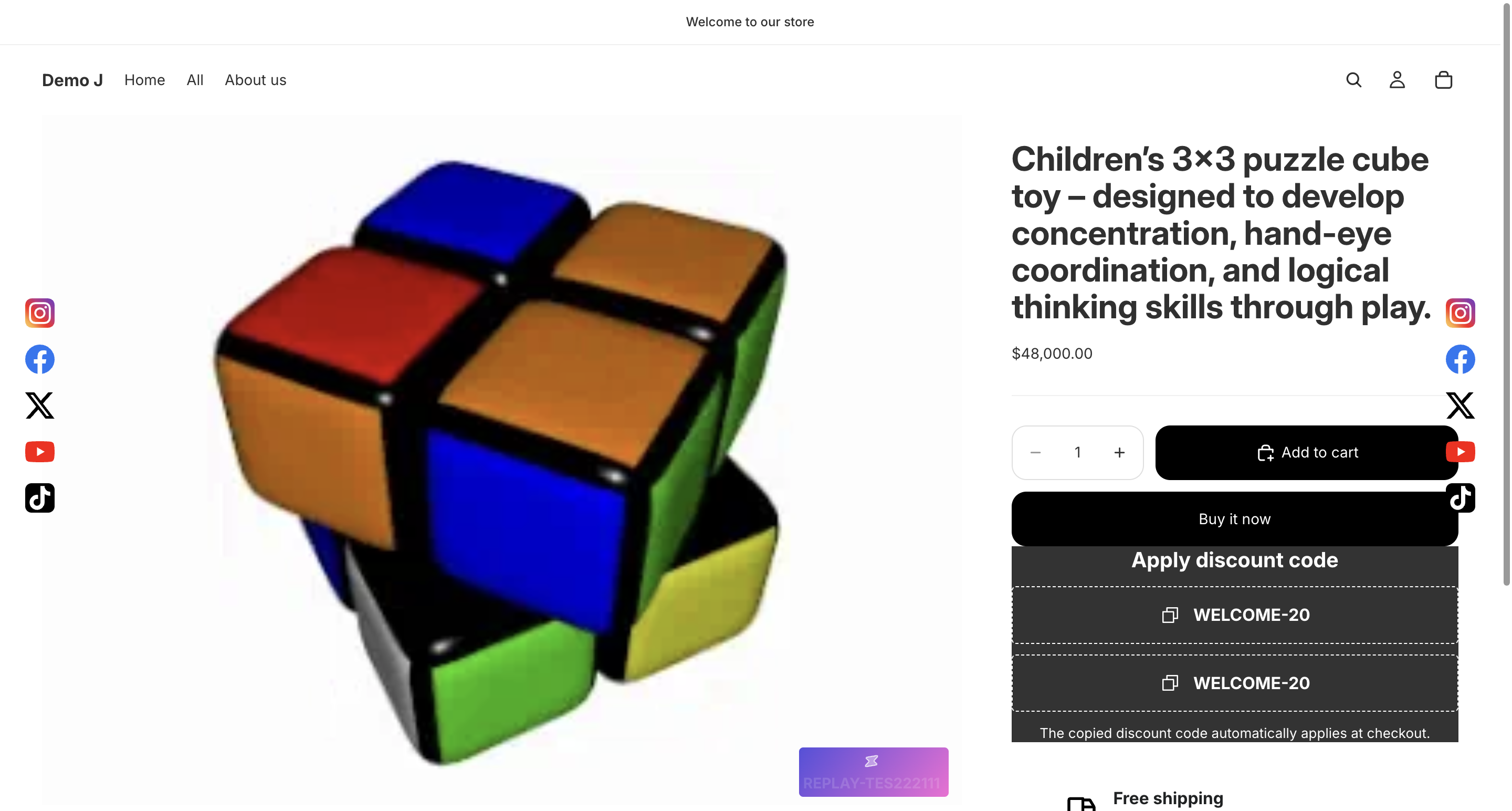
Section titled “8. Storefront verify (~1 min)”Open any product page on your storefront (because Step 4 limited it to product pages). Confirm the block renders.
Next steps
Section titled “Next steps”| Want to learn | Go to |
|---|---|
| Full wizard walkthrough | Block creation wizard |
| Editor layout overview | Editor overview |
| All 8 visibility dimensions | Target tab |
| Component types and fields | Components |
| Common how-to tasks | How-to |
| Troubleshooting | Troubleshooting |