
Translate block text for multi-language stores
Use the Languages tab to provide translations for the block’s translatable fields per language. Storefront auto-switches based on buyer language. Untranslated fields auto-fall-back to default language (“If a language has no value, it falls back to the default language.”).
1. Confirm the shop has multi-language enabled
Section titled “1. Confirm the shop has multi-language enabled”Shopify Admin Settings → Markets / Languages → add target languages.
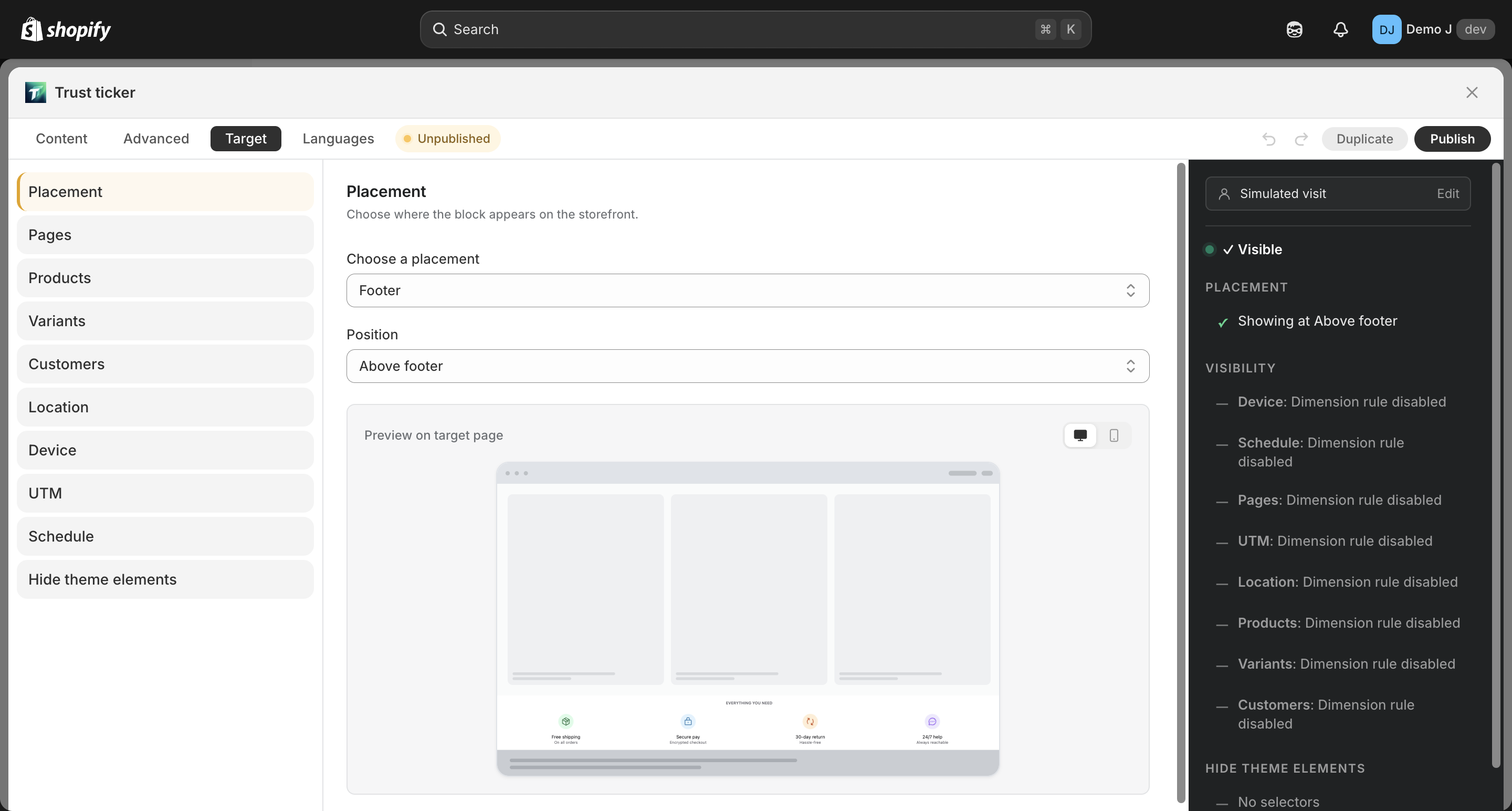
2. Enter the block’s Languages tab
Section titled “2. Enter the block’s Languages tab”3. Add a language
Section titled “3. Add a language”Click “Add language” to open the available language picker; pick a target language.
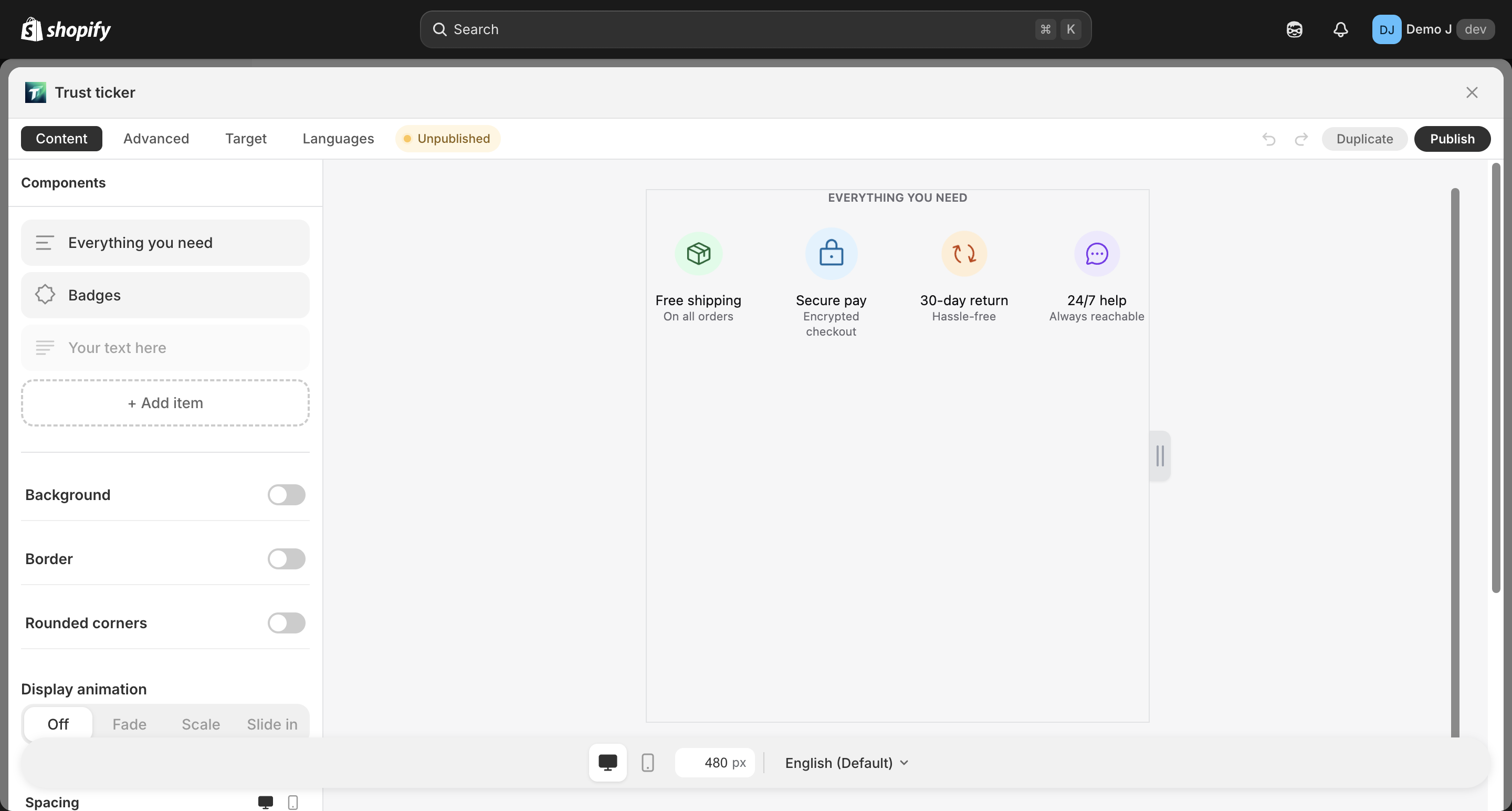
4. Fill translations field by field
Section titled “4. Fill translations field by field”In the per-component grouped table, the “Default” column is read-only (shop’s primary language); each language has its own column. For the list of translatable fields by component type, see Languages tab — Translation table.
5. Empty fields auto-fall-back
Section titled “5. Empty fields auto-fall-back”Untranslated fields use the “Default” column value.
6. Delete a language
Section titled “6. Delete a language”Click × on the language pill; confirmation modal “All {language} translations on this block will be deleted; untranslated fields fall back to default.”