
Quick start (Product image overlay)
Product image overlay (Label block) is a small chip directly overlaid on product images, working across PDP and product collection cards. This page covers Label-specific flow only; for general block onboarding see Quick start.
⚠️ Cross-type switching is hidden-prohibited: once you choose “Product image overlay”, the block’s type cannot be changed back. To change type, rebuild the block.
Prerequisites
Section titled “Prerequisites”Complete Install and enable.
8-step run-through
Section titled “8-step run-through”1. Create: build a label with the wizard (~1 min)
Section titled “1. Create: build a label with the wizard (~1 min)”Home → “Create block” → wizard Step 1 → pick “Product image overlay” card.
- i18n:
placement.card.label.title= “Product image overlay” - Tip: “Pin a label to product images (PDP main image or collection card image).“
2. Pick a preset (~30 sec)
Section titled “2. Pick a preset (~30 sec)”Step 2’s recommended row shows 4 Label presets by default:
- Sale —
label-sale-25, defaults tobyCompareAtPricecondition enabled - New arrivals —
label-new-arrivals, defaultsbyNewArrival.withinDays = 30 - Low stock —
label-low-stock, defaultsbyInventory.thresholdenabled - Natural —
label-natural, no conditions, pure styling chip
Pick one → “Use this template”.
3. Pick color scheme (~10 sec)
Section titled “3. Pick color scheme (~10 sec)”Step 3 → pick a color scheme. “Use this scheme” → enters editor.
4. Edit chip content (~1 min)
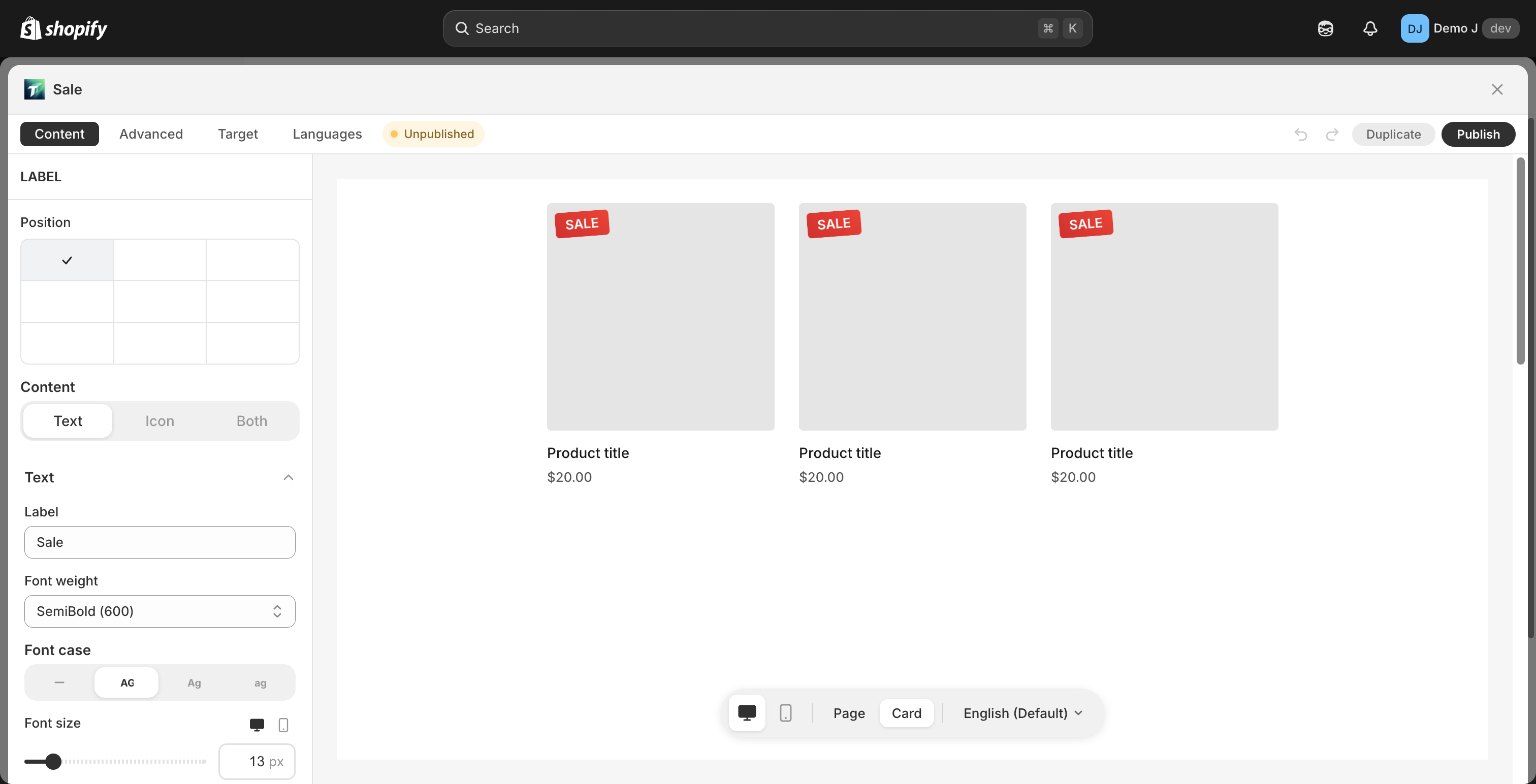
Section titled “4. Edit chip content (~1 min)”Content tab shows a Label-specific panel:
- Top AnchorPicker (3×3 grid, 9 anchor points)
- Single label_chip edit panel (not a component list)
- Fields: chip.icon / chip.text / chip.contentMode (
icon-only/text-only/both) / chip.layout.order (icon-first/text-first)
5. Set scope (~15 sec)
Section titled “5. Set scope (~15 sec)”Target tab → top has a new scope segmented control:
- Page (PDP only)
- Cards (collection cards only)
- Both (PDP + cards)
i18n: placement.scope.pdp = “Product page” / placement.scope.card = “Cards” / placement.scope.both = “All”
6. Tune visibility conditions (optional, ~1 min)
Section titled “6. Tune visibility conditions (optional, ~1 min)”Label v1 surfaces 4 condition dimensions (the other 8 are evaluator-supported but UI deferred to P3):
- byCompareAtPrice — toggle “Only on sale”
- byDiscountPercent — min/max sliders
- byInventory — toggle + threshold
- byNewArrival — withinDays number
If you used a preset, defaults are pre-filled — tune or accept.
7. Publish (~10 sec)
Section titled “7. Publish (~10 sec)”Click “Publish” at the editor top. Status badge → Published.
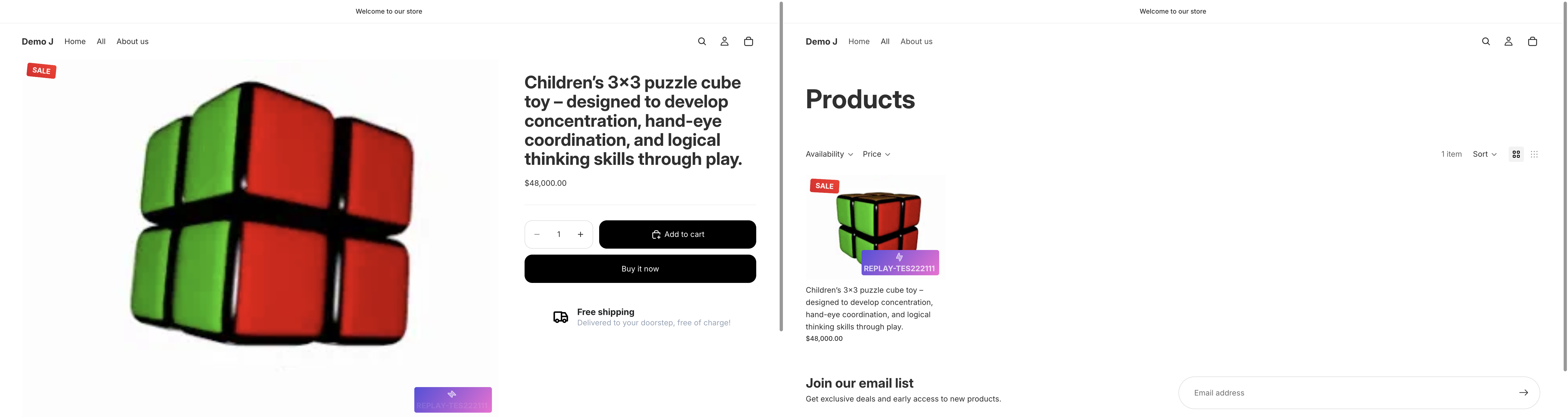
8. Dual-scenario verify (~1-2 min)
Section titled “8. Dual-scenario verify (~1-2 min)”Verify based on scope configuration:
| scope | Verification page |
|---|---|
| Page | Any product page |
| Cards | Any collection / search / recommendation page |
| Both | Both above |
Next steps
Section titled “Next steps”| Want to learn | Go to |
|---|---|
| Difference between Label and other block types | Block types |
| Full label_chip field set | Label chip |