
Make coupon work
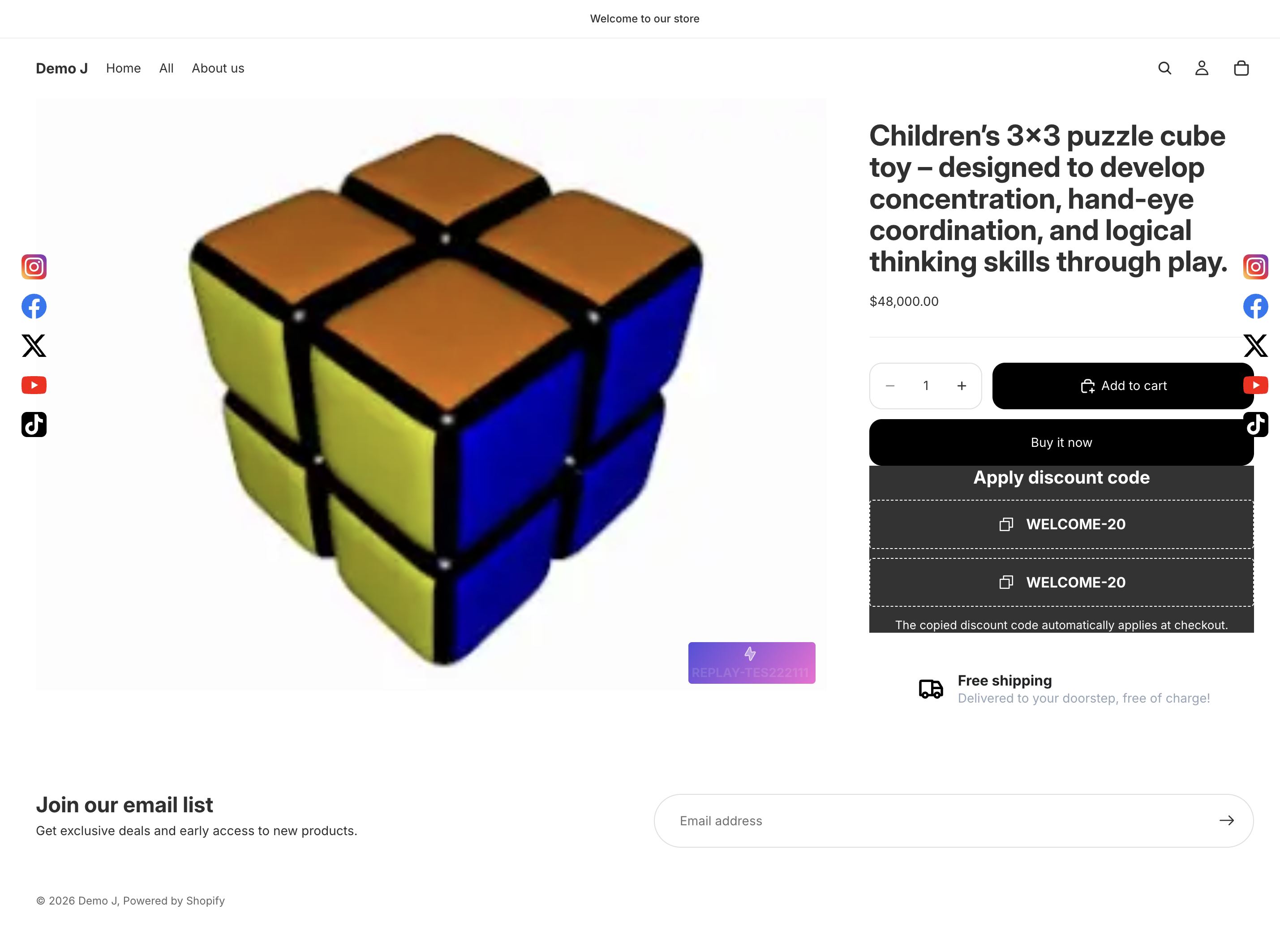
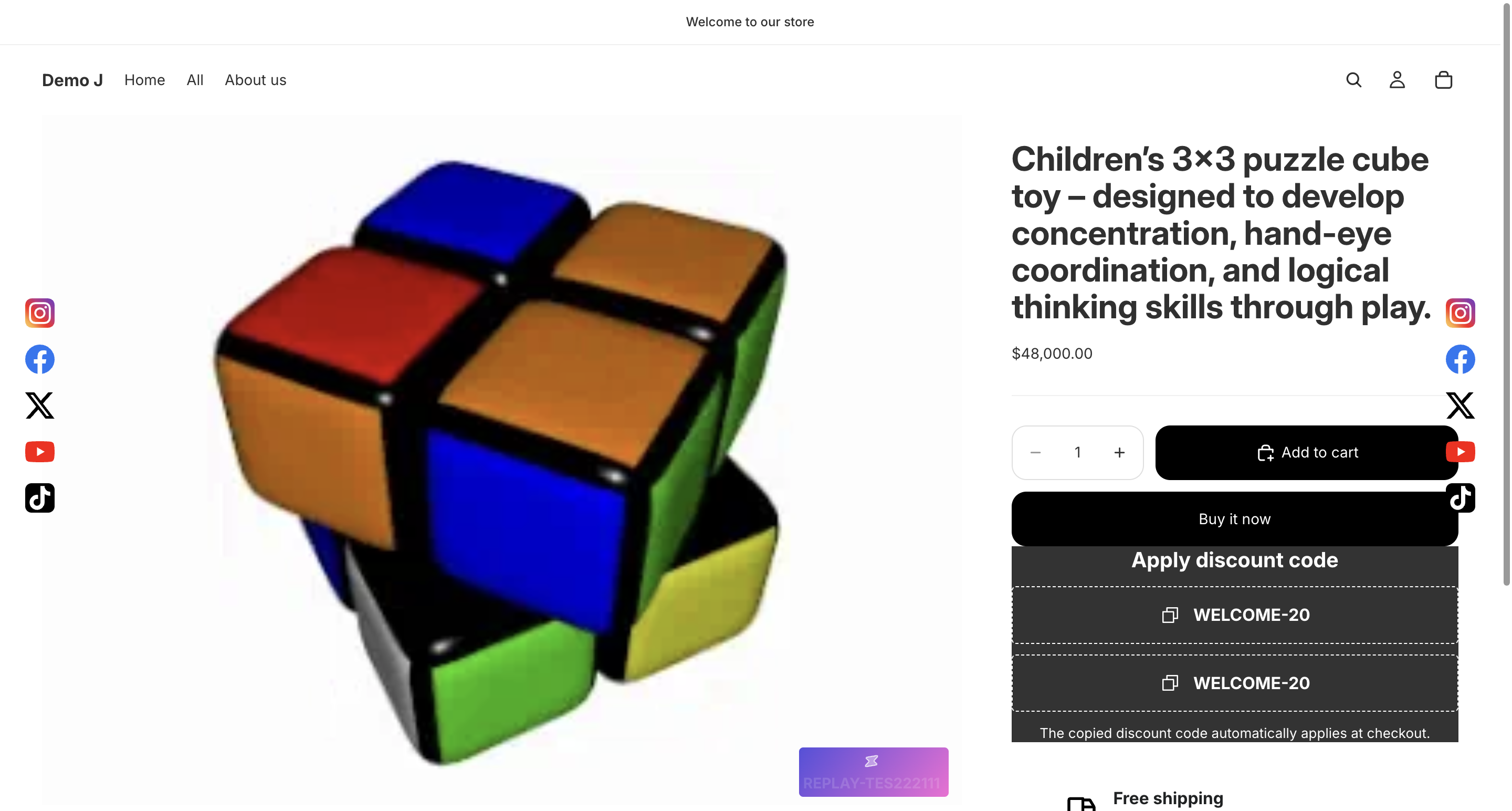
The Coupon component itself only displays a code with click-copy support; for customers to actually get the discount at checkout, you must first create the discount code in Shopify Admin.
i18n hint: “Create the discount in Shopify Admin and paste it here. Click copies and applies to checkout.”
1. Create discount in Shopify Admin
Section titled “1. Create discount in Shopify Admin”Path:
Shopify Admin → Top nav → Discounts → Create discountChoose discount type, fill in code value, discount amount, validity period, etc.
2. Copy the code value from Shopify
Section titled “2. Copy the code value from Shopify”After creation, copy the Code (e.g. WELCOME20) from the Discounts list.
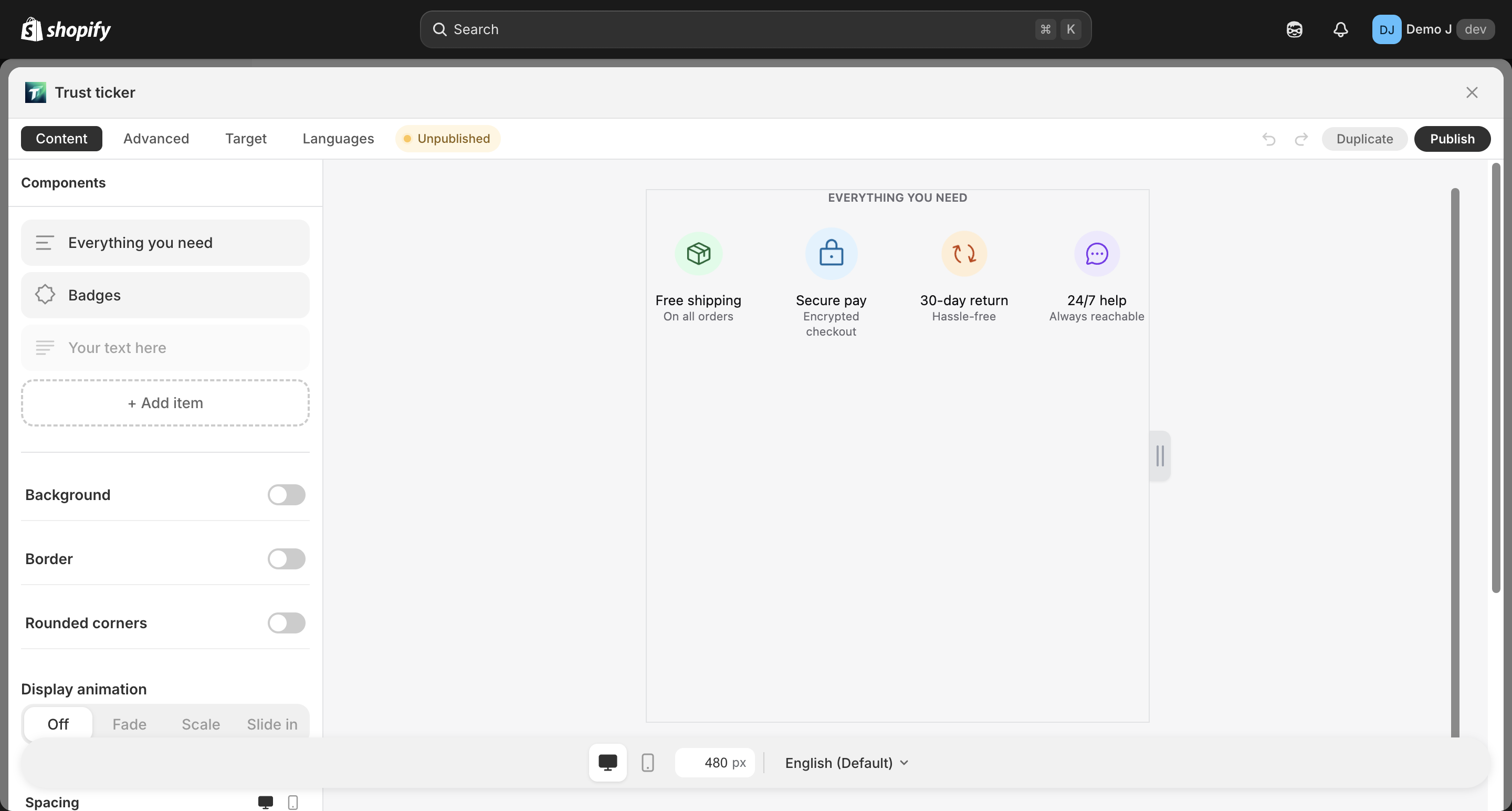
3. Create a Coupon component in TT Badges & Product Labels editor
Section titled “3. Create a Coupon component in TT Badges & Product Labels editor”In the wizard pick a “Discount” template, or in an existing block’s Content tab → ”+ Add item” → Coupon.
4. Paste the discount code
Section titled “4. Paste the discount code”In the Coupon component’s Code (code) field, paste the value from Shopify.
5. Set expiration
Section titled “5. Set expiration”Recommend matching the Expires at (expiresAt) field to Shopify Discounts validity period.
Tip: “Coupon auto-hides on storefront after this time. Leave empty for no expiration.”
6. Publish
Section titled “6. Publish”Publish the block.
7. Customer experience
Section titled “7. Customer experience”Customer clicks coupon →
- Auto-copies to clipboard (toast: “Copied!”)
- Simultaneously triggers
fetch("/discount/CODE", { redirect: "manual" })to auto-apply discount - Discount auto-takes-effect when customer enters checkout — no manual paste needed
Shopify discount type compatibility
Section titled “Shopify discount type compatibility”Coupon component’s “display + copy + apply” flow is compatible with all Shopify discount types (calculation handled by Shopify):
| Shopify discount type | Compatible | Notes |
|---|---|---|
| Amount off products | ✅ | Customer enters checkout, Shopify applies per rule |
| Buy X get Y | ✅ | Same |
| Amount off order | ✅ | Same |
| Free shipping | ✅ | Same |
| Automatic discount (no code needed) | ❌ | Not applicable (Coupon component is a code field; auto discount needs no code input) |
Multiple codes per component?
Section titled “Multiple codes per component?”Currently one Coupon component holds 1 code. To display multiple discount codes:
- Use Button list container with multiple Coupon children
- Or build multiple blocks with visibility rules to display them separately
Post-expiration behavior
Section titled “Post-expiration behavior”After expiresAt is reached:
- Client
widget.jsdetects current time >expiresAt→ the entire coupon component auto-hides (code no longer shown) - No need for merchant to unpublish manually; to revoke earlier, edit the component and clear
codeor unpublish the block