
Embed block at any theme location
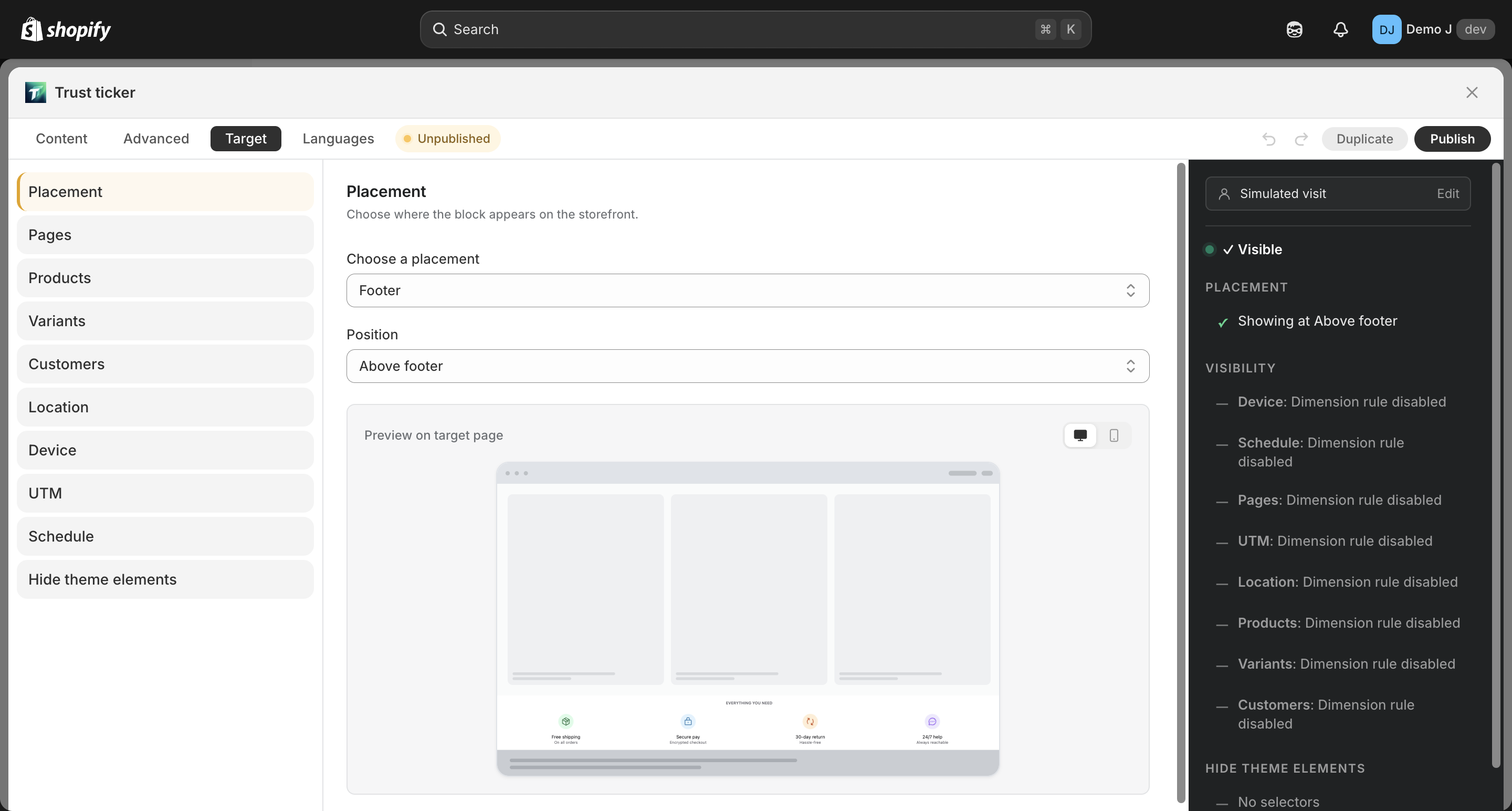
When the wizard’s 6 placement cards don’t fit, choose Custom Position to manually place via theme editor. Tip: “Open the theme editor and drag the block to any section.”
1. Set the block to Custom Position
Section titled “1. Set the block to Custom Position”In the wizard Step 1 pick Custom Position, or in Target tab switch placement to Custom Position.
2. Copy the block ID
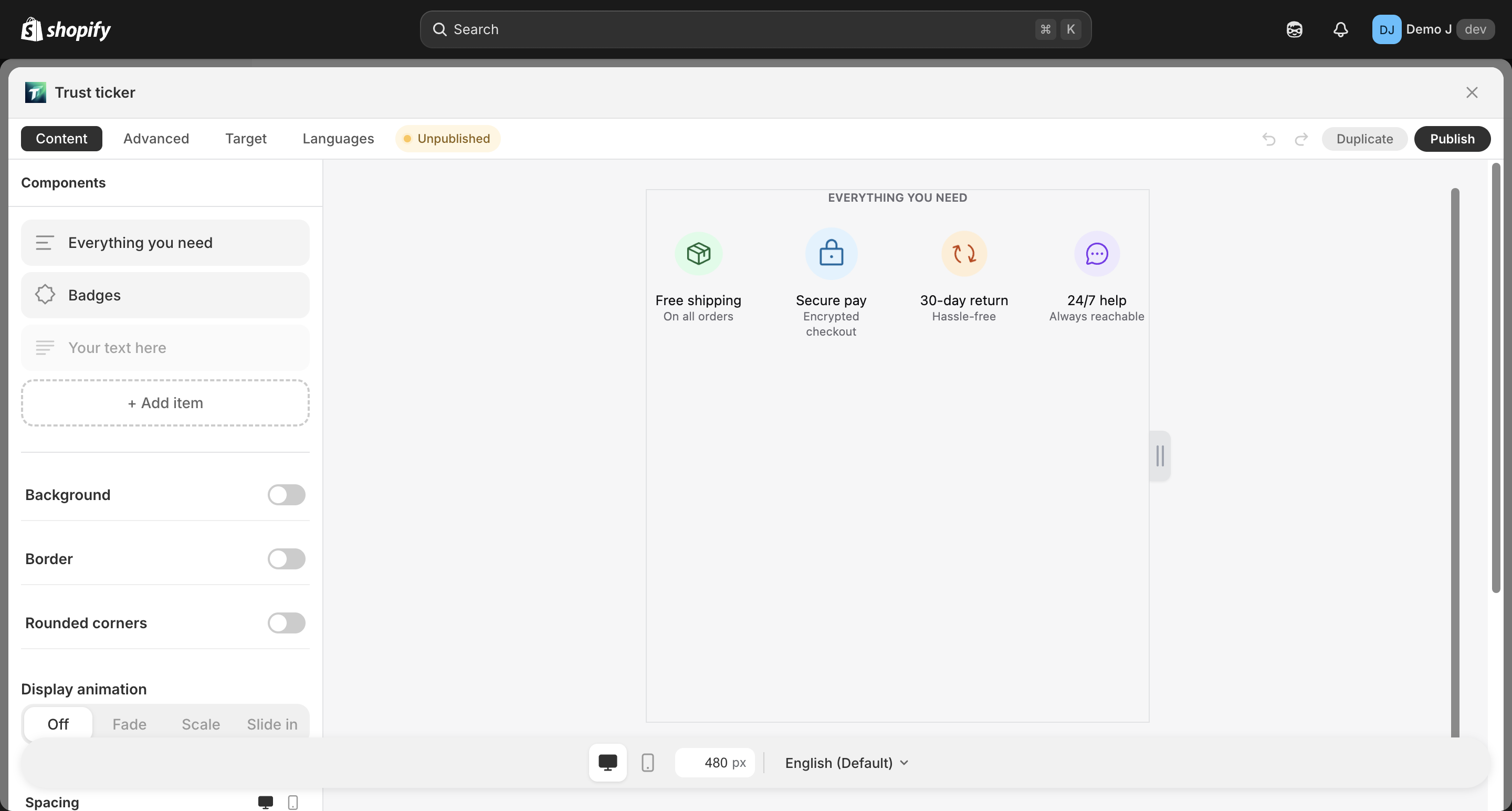
Section titled “2. Copy the block ID”Editor top → “Copy ID” (tooltip: “Copy this block’s ID for the theme editor”), or home page card ⋯ menu “Copy ID”.
3. Open theme editor
Section titled “3. Open theme editor”Or click “Add to theme” to jump directly (tooltip: “Open this block in the theme editor and auto-add it”).
4. Add an app block
Section titled “4. Add an app block”In the target section, add an app block and choose TT Badges & Product Labels.
5. Paste block ID and save
Section titled “5. Paste block ID and save”Paste the block ID in the app block’s settings; save the theme.